AI and Agents
Aember has a built-in MCP server, so AI agents such as Cogitae, Claude Code, Codex, GitHub Copilot and Gemini CLI can work through the editor. Aember can also ask Cogitae or GitHub Copilot for code suggestions, and Cogitae for rewrites.
Aember’s MCP Server
Aember runs a Model Context Protocol (MCP) server. A coding agent that connects to it reads, searches and edits your files through Aember, and uses Aember’s language servers, code graph, builds and History.
Working through Aember has these benefits for the agent and for you:
- The agent sees your files as you see them, unsaved changes included.
- Every change the agent makes is recorded in History under the agent’s name, so you can review it and undo it.
- The agent can ask what names mean in the code, instead of searching text again and again. This can use fewer tokens.
How the server works
- The server is on by default. It uses the HTTP transport at
http://127.0.0.1:56891/mcp. - If port 56891 is in use, the server takes another free port. The MCP pane of Settings shows the address it really uses.
- One Aember serves every project it has open. When several projects are open, the agent names the project in each call.
- The server listens only on this Mac.
- The server needs a license or a trial. Without one, it does not start. See History and Your License.
Web pages are refused
A web page in your browser cannot use the server. Aember refuses every request that comes from a web page: requests with an Origin header, and requests whose Host is not localhost, 127.0.0.1 or [::1]. Aember sends no CORS headers, so a browser cannot read its replies.
The token
The server has a token, a long random string that Aember makes once and keeps in the Keychain. A request that sends the token in an Authorization header must send the right one, or Aember refuses it.
By default, requests that send no token are accepted. Turn on Require token in the MCP pane to refuse them too. Then other programs on this Mac can use the server only with the token. Cogitae, the Claude Code plugin, the Claude Code hooks, the Codex, Copilot and Gemini hooks, and what the copy buttons in the MCP pane copy send the token, so they keep working.
Connect an Agent
 WatchAember Showcase 1: Let an Agent Loose, Then Take Back Only What You Don't Want
 WatchAember Basics 40: Connect Claude Code
 WatchAember Basics 41: Connect Codex
Connect an agent to Aember’s MCP server as an HTTP MCP server.
- Open the project in Aember.
- Choose Settings… in the Aember menu, then choose MCP.
- Make sure Enable MCP Server is on, and that the Status: row shows Running.
- Copy the address in the Endpoint: row.
- Add that address to your agent as an HTTP MCP server named
aember, as described below.
When the agent connects, it gives its name. Aember uses that name for the agent’s changes in History.
Cogitae
Cogitae connects by itself. While Aember’s server runs, Aember writes its address and token to a file in its Application Support folder. Cogitae reads that file, adds a server named Aember to its MCP servers, and connects. When Aember quits or the server moves to another port, Cogitae follows. There is nothing to set up.
Cogitae’s changes appear in History as Cogitae’s. The Cogitae section of the MCP pane shows whether Cogitae is connected.
Claude Code
The easiest way is the Aember plugin for Claude Code. It connects every Claude Code session to Aember, with nothing to set up in each project.
Without the plugin, click Copy Claude Code Setup in the MCP pane, then paste the command in a terminal in the project folder and run it. The command looks like this, with the server’s token at the end:
claude mcp add --transport http aember http://127.0.0.1:56891/mcp --header "Authorization: Bearer …"
To have Claude Code’s own file tools recorded too, install the Claude Code hooks.
Codex
Click Copy Codex Setup in the MCP pane, then paste the lines into Codex’s ~/.codex/config.toml. They add a server named aember with the server’s address and token.
To have Codex’s own edits recorded too, install the Codex hooks.
GitHub Copilot
Click Copy Copilot Setup in the MCP pane, then paste the command in a terminal and run it. It adds a server named aember to ~/.copilot/mcp-config.json, which Copilot CLI, the GitHub Copilot app and Copilot in VS Code use. The command looks like this:
copilot mcp add --transport http --header "Authorization: Bearer …" aember http://127.0.0.1:56891/mcp
To have Copilot’s own file tools recorded too, install the Copilot hooks. Copilot’s agent on GitHub runs in the cloud and cannot reach Aember.
Gemini CLI
Click Copy Gemini Setup in the MCP pane, then paste the command in a terminal and run it. It adds a server named aember to ~/.gemini/settings.json, for every project. Gemini Code Assist’s agent mode uses the same settings. The command looks like this:
gemini mcp add --scope user --transport http --header "Authorization: Bearer …" aember http://127.0.0.1:56891/mcp
Gemini CLI connects to MCP servers only in folders you trust. To have Gemini CLI’s own file tools recorded too, install the Gemini hooks.
Other agents
Add the address as an HTTP (Streamable HTTP) server in the agent’s MCP settings. If you turned on Require token, also give the agent the header Authorization: Bearer followed by the token. The commands that the copy buttons copy contain the token.
The MCP pane
- Enable MCP Server turns the server on or off.
- Port: sets the port the server tries first. The default is 56891.
- Status: shows whether the server is running. If the server is on but you have no license, the status says so.
- Endpoint: shows the address to give to agents.
- Require token refuses requests that do not send the server’s token. See The token.
- Copy Claude Code Setup, Copy Codex Setup, Copy Copilot Setup and Copy Gemini Setup copy what adds Aember to each agent.
- Copy Plugin Install Commands copies the commands that install the Claude Code plugin.
- Tool Count: shows how many tools the server offers.
The pane also installs the agents’ hooks, and shows whether Cogitae is connected. See Claude Code Hooks and Codex, Copilot and Gemini Hooks. For all controls of the pane, see MCP Settings.
Use Claude Code with the Aember Plugin
The Aember plugin for Claude Code connects every Claude Code session to Aember, with nothing to set up in each project. It takes the place of Copy Claude Code Setup and the Claude Code hooks.
With the plugin installed:
- When a Claude Code session starts in a project, Aember opens the project if it is not open yet, without coming to the front. If Aember is not running, the plugin starts it. A project here is a folder in a git repository, or one with an
.aemberfolder. A session in your home folder, or in a folder that is not a project, opens nothing. - Claude is told that the project is open in Aember, and to read, search and edit its files with Aember’s tools.
- Claude Code connects to Aember’s MCP server. This works when Require token is on, too.
- Claude Code’s own Read, Edit and Write calls are handled as the Claude Code hooks handle them: History records Claude Code’s writes as its changes, and calls on files with unsaved changes in Aember are refused.
Aember’s MCP server needs a license or a trial. Without one, the plugin does nothing, and Claude Code works as usual.
Install the plugin
- Choose Settings… in the Aember menu, then choose MCP.
- In Claude Code Plugin, click Copy Plugin Install Commands.
- Paste the commands in a terminal and run them. They are:
claude plugin marketplace add bitarts-ltd/aember-claude-plugin
claude plugin install aember@bitarts
Claude Code sessions that start after that use the plugin. To remove it, run claude plugin uninstall aember@bitarts.
If you set up Claude Code before
If you added Aember with claude mcp add, or installed the Claude Code hooks, take them out. Otherwise Claude Code sees Aember’s tools twice, and its edits are reported to History twice.
- Run
claude mcp remove aemberin each project where you added Aember. If Claude Code says the server is in several scopes, run the command it suggests for each. - In each project with the hooks, click Remove Hooks in the MCP pane.
The plugin’s tools have other names than the ones claude mcp add gave: they start with mcp__plugin_aember_tools__. If you allowed Aember’s tools in Claude Code’s permission settings, allow mcp__plugin_aember_tools too.
Options
To change the plugin’s options, run /plugin configure aember@bitarts in Claude Code.
- Open projects in Aember: on by default. When it is off, nothing is opened, and only sessions in projects that are already open in Aember are told about it.
- Route file tools through Aember: off by default. When it is on, Claude Code’s own Read, Edit, Write and Grep are refused on the files of a project that is open in Aember, so Claude uses Aember’s tools and every change is recorded. Read still opens images, PDFs and other files that are not text. Calls are refused only while that Claude Code session is connected to Aember, so Claude is never left without a way to read files.
- Aember MCP server: the address in the Endpoint: row of the MCP pane. Change it only if Aember’s server is not on port 56891.
- Aember app: the Aember to start when Aember is not running. When it is empty, the plugin starts
/Applications/Aember.app, or else any copy of Aember.
If Claude Code’s Aember tools are missing in a session, Aember’s server was not reachable when the session started. Run /mcp in Claude Code and reconnect plugin:aember:tools.
Claude Code Hooks
With the Aember plugin for Claude Code, you do not need these hooks: the plugin does the same in every project.
Many agents also have file tools of their own, which write to disk without going through Aember. Aember sees those changes as made outside Aember, and an agent that reads a file that way does not see your unsaved changes. Ask your agent to use Aember’s tools for the files in the project.
Claude Code’s own tools are Read, Edit, Write and MultiEdit. For Claude Code, hooks let Aember see these calls in your project.
With the hooks installed:
- Before Claude Code reads or writes a file that has unsaved changes in Aember, the call is refused. Claude Code is told to use Aember’s tools for that file instead, so it does not read old contents or write under your changes.
- Before Claude Code writes a file, History records the file’s contents, if it does not have them yet.
- After Claude Code writes a file, History records the new contents as Claude Code’s change. You can undo them like any agent’s change.
If Aember is not running, the hooks do not stop Claude Code.
Install or remove the hooks
- Open the project, then open the MCP pane of Settings.
- In Hooks, click Install Hooks….
- Aember shows the hooks and the file they go into. Click Install.
The hooks go into the project’s .claude/settings.local.json. Other settings and hooks in that file are kept. Remove Hooks takes out only Aember’s hooks.
The Status: row says whether the hooks are installed in the open project. If the server moved to another port, Aember moves installed hooks to the new port when the server starts and when a project opens.
The hooks send the server’s token, so they keep working when Require token is on. The token is in .claude/settings.local.json, which Claude Code keeps out of git.
For Codex, GitHub Copilot and Gemini CLI, see Codex, Copilot and Gemini Hooks.
Codex, Copilot and Gemini Hooks
Codex, GitHub Copilot and Gemini CLI have file tools of their own too. Hooks let Aember see these tools’ calls, as the Claude Code hooks do for Claude Code.
With an agent’s hooks installed:
- Before the agent writes a file that has unsaved changes in Aember, the call is refused, and the agent is told to use Aember’s tools for that file instead. Copilot and Gemini CLI are refused reads of such a file too.
- Before the agent writes a file, History records the file’s contents, if it does not have them yet.
- After the agent writes a file, History records the new contents as the agent’s change. You can undo them like any agent’s change.
The hooks see these tools:
- Codex: its edits (apply_patch). Codex reads files with shell commands, which the hooks cannot see.
- GitHub Copilot: view, create and edit.
- Gemini CLI: read_file, write_file and replace.
The hooks work in every project you open in Aember. Files that are not in an open project are left alone. If Aember is not running, the hooks do not stop the agent.
Install or remove the hooks
- Open the MCP pane of Settings.
- In Hooks, turn on the agent’s checkbox.
- Aember shows the hooks and the file they go into. Click Install.
Turn the checkbox off to remove the hooks.
The hooks go into each agent’s own settings in your home folder:
- Codex:
~/.codex/hooks.json. Codex runs a new or changed hook only after you trust it: run/hooksin Codex and trust Aember’s hooks. - GitHub Copilot:
~/.copilot/hooks/aember.json, a file of Aember’s own. - Gemini CLI:
~/.gemini/settings.json. Gemini CLI runs hooks only in folders you trust.
Other settings and hooks in these files are kept, and removing takes out only Aember’s hooks. Aember cannot change a settings file that is not plain JSON, for example one with comments.
Each hook runs a small script, agent-hook, in Aember’s Application Support folder. The script reads the server’s address and token from the file Aember writes while its server runs, so the agents’ settings hold no token, and the hooks keep working when the server moves to another port.
What Agents Can Do
A connected agent can use Aember’s tools in these areas:
| Area | What the agent can do |
|---|---|
| Files | Read files as you see them, search the project, read one declaration, write and edit files, move, rename and delete files, read the latest commits and their messages |
| Language servers | Find definitions and references, get types and documentation, see call and type hierarchies, rename symbols, use quick fixes, format code, get diagnostics |
| Code graph | Find symbols, callers, callees, dependencies and an overview of the project |
| Editor | See the active file, the selection, the open files and editors, and the files with unsaved changes |
| History | List a file’s moments, read a file at a moment, show what changed since a moment, search when text appeared or disappeared, see who wrote some lines, restore files, and add, list, rename and remove markers |
| Builds | Run builds and tests, and read their status and logs |
| Packages | List the project’s packages, check them for updates, and add, remove, update and resolve them |
Aember marks the tools that only read as read-only. Agents that honor the mark, such as Cogitae, can then use them without asking you first, and ask only before tools that change something.
The working_context tool tells the agent what you are doing now: the active file, the cursor and selection, the files with unsaved changes, and the files you changed in the last minutes.
The prompt_context tool gives the same pointers without the changes themselves: the project, the active file, the cursor and the function it is in, the active file’s errors and warnings, the files with unsaved changes, the files you changed recently, and the selected code. Cogitae attaches it to what you ask. See Ask Cogitae.
The why tool tells the agent who wrote some lines and when: you, an agent, the language server, the formatter, git, or a program outside Aember. For an agent’s change, it also names the conversation and message that asked for it, when the agent sent them.
The changes_by tool lists the changes one conversation, or one message in it, made through Aember. Cogitae uses it to show under a message which files it changed. Changes that were undone since are left out. Without a conversation, it lists the conversations that changed the project.
The recent_commits tool lists the branch’s latest commits with their messages. Cogitae reads it, with changes_by, when it learns a project. See Cogitae’s Notes on the Project.
Moving and deleting files through Aember works with editors and History. A deleted file goes to the Trash.
Agents can run builds and tests, and change packages, only when Let agents run builds and tests is on in the Build pane of Settings. See Build Settings.
Agents That Start on Editor Events
Besides its tools, Aember’s MCP server tells connected agents what happens in the editor, as it happens. Cogitae agents can start on these events instead of on a schedule or on changes to files on disk:
| Event | When |
|---|---|
| Saved | A file is saved |
| Edit ended | You, or an agent, stop editing a file for a moment |
| Diagnostics changed | A file’s number of errors or warnings changes |
| Build finished, Tests finished | A build or test run ends, passed or failed |
| Git changed | A commit, checkout, merge, rebase, stash or other git operation, or a branch switched outside Aember |
| Conflict | A merge, rebase, cherry-pick or revert stops on conflicts |
| Active file changed | You switch files, or the cursor moves into another function or type |
| Idle in symbol | You have stayed in one function for several minutes |
Each event says who caused it: you, or an agent and the conversation it works for. A Cogitae agent isn’t started by the changes it makes itself.
Events go only to agents connected to the server, with the server’s token when Require token is on. Aember sends where things happened (file paths, line numbers, symbol names, error messages), never a file’s contents.
Agents read the events from the server’s /events address, as a stream of server-sent events. The stream can be limited to one project and to some events, and an agent that reconnects is sent the events it missed.
Agents’ Changes in History
WatchAember Showcase 1: Let an Agent Loose, Then Take Back Only What You Don't Want
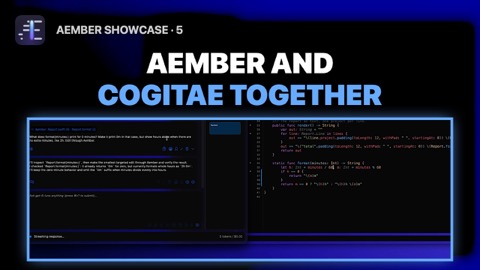 WatchAember Showcase 5: Aember and Cogitae Together
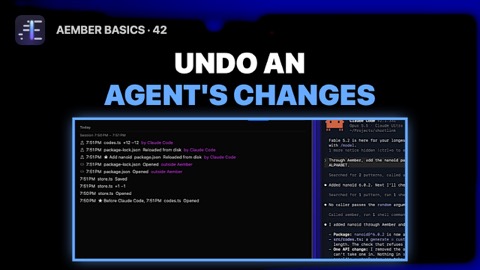 WatchAember Basics 42: Undo an Agent's Changes
History records every change an agent makes through Aember as that agent’s change, under the name the agent gave when it connected, such as Cogitae or Claude Code. With the Claude Code hooks and the Codex, Copilot and Gemini hooks, the agents’ own writes are recorded the same way.
You can see agents’ changes in several places:
- On scrubbers, an agent’s edits have an agent icon, a figure in a hat and dark glasses. Your own edits have a pencil.
- The header of a History pane says who made the change shown.
- The timeline tab shows who made each change, and an agent’s changes start with the agent icon.
Before an agent first changes a file, Aember names the file’s latest moment “Before”, followed by the agent’s name and the time. You can find that moment again by its star, and compare with it.
Changes from a Cogitae conversation
Cogitae tells Aember which conversation and message each of its calls comes from, and which agent made it. History then names the change by the agent, such as “by Cogitae: nightly cleanup”, or by the conversation’s title when you asked in a chat.
A new conversation gets its title only after its first reply. Until then, its changes show as “by Cogitae”. Once the conversation has a title, History names those changes by it too.
To go from a change to the message that asked for it, right-click the moment and choose Show in Cogitae. Cogitae opens the conversation at that message.
Undo an agent’s work
- To take out everything an agent changed after a moment, right-click the moment and choose the undo item that names the agent.
- To take out one call of an agent, right-click a moment of that call and choose Undo This Change….
Your own edits are kept. See Undo an Agent’s Changes.
Accepted AI completions and rewrites are different: they are your edits, so History records them as yours. When they come from Cogitae, History says so, such as “with Cogitae”, and Show in Cogitae opens the project’s Cogitae conversation.
Links into Aember
Other apps can open things in Aember with aember:// links. Cogitae uses them to show a change it made.
| Link | What it opens |
|---|---|
aember://diff?operation=<id> | The History pane of the first file an agent’s call changed, at that change |
aember://open?path=<path>&line=<n> | A file, at a line |
aember://moment?path=<path>&moment=<n> | A file’s History pane at a moment, numbered as the History tools number them |
A path is absolute, or relative to the front window’s project. The links only open things; they change nothing.
Set Up AI Completion
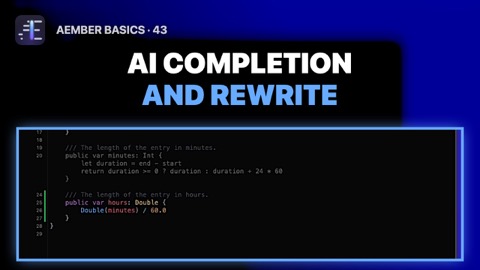
AI completion asks an AI for a suggestion where the cursor is, or for a rewrite of the selected code. It is off by default. Nothing is sent until you press the shortcut.
To set it up, open the AI Completion pane of Settings, turn on Enable AI completion, and choose the Provider:. The other controls are off while AI completion is off.
Cogitae
Cogitae can complete code and rewrite selections, with any model it offers.
Aember finds Cogitae by itself. While Cogitae’s MCP server runs, Cogitae writes its port and token to a file, and Aember reads them from there. The pane then says Found automatically: Cogitae on port Aember. When Cogitae quits, starts again or changes its port, Aember follows.
Click Test Connection to check. The line next to the button shows the result.
Aember keeps one Cogitae conversation for each project, with the project folder as its workspace. Cogitae asks once for access to the folder. Suggestions do not add messages to the conversation. Edit > Ask Cogitae opens the same conversation for you to chat in. See Ask Cogitae.
Suggestions use the model chosen for code completion in Cogitae’s preferences. When none is chosen, they use the conversation’s model, which is the model you chat with. The pane says which model suggestions run on, and suggests choosing a faster one in Cogitae when they run on the chat model.
GitHub Copilot
GitHub Copilot needs your own Copilot subscription and Copilot’s language server. Install the server with:
npm install -g @github/copilot-language-server
Click Sign In…. Aember shows a code. Click Copy Code and Open GitHub, then enter the code on the GitHub page. The pane then shows the account that is signed in. Sign Out signs out. Copilot cannot rewrite selections.
The last line of the pane shows the shortcut for Edit > Suggest Completion. See AI Completion Settings.
Use AI Completion
Press ⌥\ or choose Edit > Suggest Completion. While Aember waits, the status bar shows the activity, and a small spinner turns where the suggestion will go.
What you get depends on the cursor’s line:
- With code before the cursor, the suggestion continues the line.
- With only indentation before the cursor and code after it, the suggestion adds lines above the line.
- On a blank line, the suggestion fills the line.
The suggestion appears as faint text where it would go. Then:
- Tab accepts the whole suggestion, as one undo step.
- ⌘→ accepts the next word, or the next line of whole lines, and keeps showing the rest.
- Esc dismisses the suggestion. Typing, deleting, moving the cursor or leaving the editor also dismiss it, and cancel a request that is still waiting.
If there is no suggestion, the status bar says so. Errors, such as Cogitae not running or a refused token, also appear in the status bar.
You can change the shortcut in the key bindings. See Keyboard Shortcuts.
Rewrite Selected Code
With Cogitae as the provider, AI completion can rewrite the code you select.
- Select the code.
- Press ⌥\ or choose Edit > Suggest Completion.
- A field appears at the selection. Type how to rewrite the code, for example “Use a guard statement”. If you leave it empty, Cogitae makes a plain rewrite of the code.
- Press Return to send. Press Esc, or click somewhere else, to cancel.
The field starts with the last instruction you used in this window.
While Aember waits, the spinner turns at the start of the selection. The rewrite then appears as faint text in place of the selected code. Tab replaces the selection with it, as one undo step. Esc dismisses it and selects the code again.
With GitHub Copilot as the provider, the status bar says that rewriting needs Cogitae, and nothing is sent. See Set Up AI Completion.
Ask Cogitae
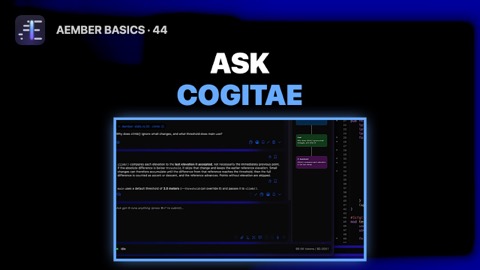
Ask Cogitae opens this project’s conversation in Cogitae, with where you are in the editor attached, so you can ask about the code without pasting it.
- Put the cursor in the code, or select some.
- Press ⌥⇧, choose Edit > Ask Cogitae, or right-click in the editor and choose Ask Cogitae.
- Cogitae opens the project’s conversation. An attachment on its input says where you are, such as “Aember: Circle.swift:42 · Circle.area”.
- Type your question and send it. To leave the attachment out, remove it before you send.
Unlike rewriting selected code, Ask Cogitae sends nothing by itself, and the question and answer stay in the conversation. This is the same conversation AI completion uses; see Set Up AI Completion. Aember makes it the first time if the project has none.
The attachment holds pointers, not files: the project, the active file, the cursor and the function it is in, the active file’s errors and warnings, the files with unsaved changes, the files you changed in the last minutes, and the code you selected. Cogitae’s model reads more code only through Aember’s tools, and those reads show in the conversation. When it changes code through Aember, History records the change as Cogitae’s. See Agents’ Changes in History.
The attachment needs Aember’s MCP server, which Cogitae reads it from. Without the server, Cogitae opens the conversation with nothing attached. If Cogitae isn’t running, Aember starts it first. If Cogitae isn’t installed, Aember offers its download page.
Switching from Aember to Cogitae
Cogitae can also attach the editor’s context when you switch to it from Aember, in its chat window or in its launcher. You can remove the attachment before you send. Cogitae’s preferences can turn this off.
Cogitae’s Notes on the Project
Cogitae can remember what it learns about a project: how the code is built, and the decisions recorded in commit messages and in the conversations that changed it. Aember shows these notes next to the code they are about.
To have Cogitae learn the project, choose Edit > Remember Project in Cogitae. Cogitae reads the project through Aember’s MCP server in the background: an overview of its code, the latest commit messages, and the Cogitae conversations whose changes History recorded. It stores what it learns as notes about this project. The status bar says when it has started. Its notes appear in Aember within a few minutes. This needs Cogitae running, Aember’s MCP server on, and a Cogitae license. Cogitae also offers an agent that does the same after each commit.
While Cogitae runs, the navigator’s Notes folder lists the notes about the file in the active editor: those that name the file or something declared in it. The folder appears only when there are some. Point at a note to read it, or click it to see it in full. Right-click a note for Show Note, Copy Note, and Show in Cogitae, which opens the conversation the note came from when Cogitae still has it.
When you rest the mouse on a name that a note mentions, the popover shows the note under the name’s documentation, headed Notes from Cogitae. This works when Show Documentation on Hover is on, even for a file with no language server.
Aember asks Cogitae for a file’s notes when you open the file, and again after a few minutes. Nothing is asked while Cogitae isn’t running. The notes are about the project as it is now, so a window parked at a moment doesn’t show them. To turn the notes off, clear Show Cogitae notes in the MCP pane of Settings. See MCP Settings.