
Code Intelligence
Aember runs a language server for each language in your project. The server knows what the names in your code mean, so Aember can complete code, show documentation, find definitions and references, rename symbols and report errors.
Language Servers
Aember starts a language server when you open a file in a language it supports. Each project window has its own servers: one per language, shared by all files of that language in the project. When you close the project window, its servers stop.
| Language | Server | File extensions |
|---|---|---|
| Swift | sourcekit-lsp | .swift |
| C, C++, Objective-C++ | clangd | .c .h .cpp .cc .cxx .hpp .hh .hxx .mm |
| Objective-C, with the Objective-C language pack | clangd | .m |
| Rust | rust-analyzer | .rs |
| Python | pylsp | .py .pyw .pyi |
| TypeScript, JavaScript | tsc (TypeScript 7 or later), else typescript-language-server | .ts .tsx .js .jsx .mjs .cjs |
| PHP | intelephense | .php .phtml |
Aember does not install language servers. sourcekit-lsp comes with Xcode and the Xcode Command Line Tools. Aember finds the other servers on your PATH and in the usual install folders, such as /opt/homebrew/bin, /usr/local/bin and ~/.cargo/bin. TypeScript and JavaScript use the language server built into tsc from TypeScript 7 on. With an older TypeScript, Aember uses typescript-language-server instead.
When a server is not installed, Aember shows an alert with the commands that install it, once per server and project window. See A Language Server Does Not Start.
Turn features on and off
The Code Tools pane of Settings turns language server support on and off as a whole, and each feature separately. It also has Format Document on Save, which formats a file with its language server each time you save it. Its Server Status line shows the languages whose servers are running in any window. See Code Tools Settings.
Project Types and Compilation Databases
Some language servers need to know how each file is compiled. When you open a project, Aember detects its build system and prepares what its language server needs.
- Swift Package Manager (a
Package.swiftin the project folder): sourcekit-lsp reads the package directly. Nothing else is needed. - Xcode projects (a
.xcodeprojor.xcworkspacein the project folder): ifxcode-build-serveris installed (brew install xcode-build-server), Aember runs it to writebuildServer.jsonin the project folder, and sourcekit-lsp gets its information from Xcode’s build system. Without it, Aember runs a realxcodebuildbuild and reads the compiler commands from its output. - C, C++ and Objective-C: Aember writes a compilation database,
.aember/compile_commands.json, and points clangd at it. It makes one for CMake (CMakeLists.txt), Ninja (build.ninja), Make (Makefile) and Xcode projects. - Rust (
Cargo.toml), Python, TypeScript and PHP: their servers read the project’s own configuration files.
Aember watches the main build file, such as CMakeLists.txt, Makefile or project.pbxproj. When it changes, the status bar says so, Aember makes the compilation database again, and clangd restarts to read it. The tools that make the database get the project’s build environment (see Build Environments).
Swift Package Manager projects get the most complete support. An Xcode project works best with xcode-build-server installed.
Complete Code
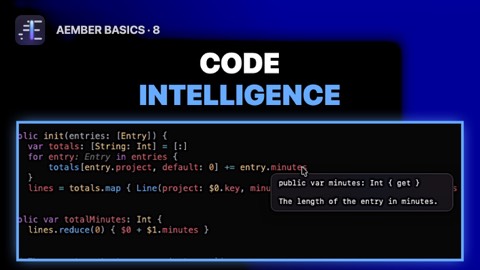
As you type a name, Aember asks the language server for completions and shows them in a list under the cursor. The list also opens at once after a character the server names as a trigger, such as . in many languages. A character that cannot be part of a name closes it. Aember does not show completions inside strings and comments.
To ask for completions at any time, press ⌃Space.
In the list:
- Press ↑ and ↓ to choose an item.
- Press Return to insert the chosen item.
- Press Esc to close the list.
- Press Tab to close the list without inserting anything.
Some completions are templates with placeholders, for example the arguments of a function call. After you insert one, the first placeholder is selected. Press Tab to go to the next placeholder and ⇧Tab to go back. Press Esc to stop.
A completion can also add text elsewhere in the file, such as an import it needs. Undo removes the completion and its other edits in one step.
AI suggestions from Edit > Suggest Completion are a separate feature. See AI Completion.
Show Documentation and Signatures
Documentation on hover
Rest the mouse on a name for a moment, and a popover below it shows the documentation the language server has for the name. Move the mouse away and the popover closes. To read a long entry, move the mouse into the popover, where you can scroll and select text. Click it to copy with ⌘C. Typing, clicking in the editor, scrolling or pressing Esc closes it.
Turn this off with Show Documentation on Hover in Code Tools Settings.
Quick Help
Put the cursor on a name and choose Edit > Show Quick Help (⌘⇧H), or right-click the name and choose Show Quick Help. A Quick Help window opens with the documentation the language server has for it. You can resize the window and close it as usual.
Signature help
When you type ( or , in a function call, a small window shows the function’s parameters. Typing ) or pressing Esc closes it. To show it at any time, choose Edit > Show Signature Help (⌘⇧Space).
Inlay hints
Inlay hints are small labels in the text that show types and parameter names the code leaves out. Press ⌘⇧I to show or hide them. In Code Tools Settings, Show Type Annotations and Show Parameter Names choose which hints appear.
Symbol highlights
When the cursor rests on a name, Aember highlights the other places the same symbol appears in the file. Highlight Symbol Occurrences in Code Tools Settings turns this on and off.
Go to a Definition
Put the cursor on a name, then:
- Choose Edit > Go to Definition (⌘J) to open the file where the symbol is defined, at its line.
- Choose Edit > Go to Declaration (⌘⇧D) to open its declaration. In C and C++ the declaration is often in a header.
Both are also in the editor’s context menu. When the server gives several places, Aember opens the first. A file without a tab of its own opens in the preview tab. See The preview tab.
Call hierarchy
Choose Edit > Show Call Hierarchy (⌘⇧C) with the cursor on a function. The Call Hierarchy window lists the functions that call it. Use the two buttons at its top to switch between Incoming Calls and Outgoing Calls. Expand a row to follow the calls further. Click a row to go to that function.
Type hierarchy
Choose Edit > Show Type Hierarchy (⌘⇧Y) with the cursor on a class, structure, protocol or enumeration. The Type Hierarchy window shows its Supertypes (Parents) or its Subtypes (Children). Click a row to go to that type. sourcekit-lsp and clangd support the type hierarchy for Swift, C++ and Objective-C. It is not available for C or Rust, where the command isn’t offered. When there’s no hierarchy at the cursor, or the language server fails, the status bar says so, for both commands.
The editor’s context menu shows Show Call Hierarchy only on a function, and Show Type Hierarchy only when the server supports it.
Find Symbols and References
To find a symbol anywhere in the project and every place that uses it:
- Put the cursor on a name and choose Edit > Find Symbol… (⌘T, or ⌥⌘R). You can also right-click a name and choose Find Symbol.
- The Find in Project panel opens in Find & Rename mode, with the name in the search field. You can also switch to this mode with the button at the top of the panel.
- When exactly one symbol has that name, its results appear at once. Otherwise a list of matching symbols drops down. Press ↑ and ↓ to choose one and Return to pick it, or click it. Type in the field to search for another symbol.
The results show two sections. Where Defined lists the definitions and declarations. Where Referenced lists every use. Click a result to show it in the editor if that file is already open. Double-click it, or press Return, to open the file at that line.
Symbol search uses the language servers that are running. A server starts when you open a file of its language, so open one file first. If no server runs, the panel says LSP not available.
To search for plain text instead, use Find & Replace mode. See Find and Replace in the Project.
Rename a Symbol
A rename through the language server changes the symbol and every reference to it, in every file, and leaves other text with the same name alone.
From the Find panel
- Find the symbol as in Find Symbols and References and pick it from the list.
- Type the new name in the Rename to… field.
- Click Rename, or press Return in the field.
- Confirm in the Rename Symbol alert.
The status line of the panel says how many files changed.
From the Outline
In the navigator’s Outline, right-click a symbol of the file in the active editor and choose Rename Symbol…. Type the new name and click Rename. The item appears only when the file’s language server supports renaming.
Aember changes open files in their editors and other files on disk. History records the whole rename as one change in each file, so you can review it and undo it there. See History.
Fix Problems with Diagnostics
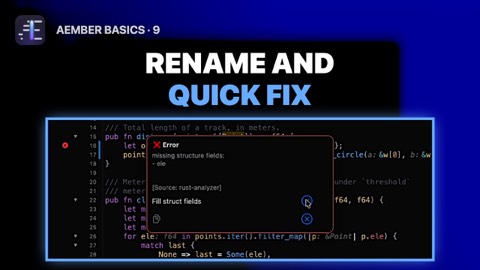
The language server checks your code as you type and reports errors, warnings, information and hints. Aember underlines the text each one is about and shows an icon in the gutter beside the line:
| Icon | Meaning |
|---|---|
| Red cross | Error |
| Orange triangle | Warning |
| Blue circle | Information |
| Gray light bulb | Hint |
Click a gutter icon to read the messages for that line.
Quick Fix
Many servers offer fixes for their diagnostics. Put the cursor on the underlined text and choose Edit > Quick Fix… (⌥⌘.), or right-click the line and choose Quick Fix. An alert shows the message, the server that reported it and the fixes the server offers. Click the button beside a fix to apply it (Apply fix), or click Dismiss. When there is no diagnostic at the cursor, Aember shows No Diagnostic.
Fixes are recorded in History like any other edit.
Show Diagnostics (Errors/Warnings) in Code Tools Settings turns diagnostics and Quick Fix on and off. Problems found by a build appear in the build log instead. See Read the Build Log.
The Code Graph
Aember also keeps a code graph: an index of the symbols in your project, the calls between them and the files each file uses. AI agents connected to Aember query it to understand your code. See Connect an Agent.
Aember builds the graph in the background when a project opens, one project at a time, and updates it when files change. While it works, the status bar shows its progress, for example the number of files indexed. Files that did not change since the last index are skipped.
The graph leaves out build folders, dependency folders such as node_modules, .git, .aember and files git ignores. To leave out more, put a .codegraphignore file in the project folder. It uses the same patterns as .gitignore.
The graph is stored in .aember/codegraph.db in the project folder. It is a cache that Aember can rebuild from your source at any time. See The Code Graph Is Out of Date.