
History
History is Aember’s own record of every change to your files, saved or not, without git. You can see any file as it was at any moment, restore it, and take an agent’s changes back out.
What History Records
History records every change Aember makes to a text file, whoever makes it: you, an agent, the language server, the formatter, git, or a program outside Aember. Each recorded point is a moment.
- Typing is grouped into bursts. A burst ends after a pause of one second, when you edit somewhere else, or after ten seconds of continuous typing.
- Opening, saving, reloading from disk, reverting, restoring and deleting a file are moments too.
- Git operations, such as commits, branch switches, resets, merges and stashes, are recorded as markers between the moments. Before git rewrites files on disk, History records the files’ contents first.
History does not need git, and it does not write anything into your project. It keeps its records in ~/Library/Application Support/Aember/History/, one store per project. Files outside a project and untitled documents go into a shared store.
Unsaved work is kept
Aember writes a file to disk only when you save it. Your unsaved changes are kept in History instead. They come back after you quit, after a crash, and after you switch projects. When you close a tab with unsaved changes, Aember does not ask: the changes stay in History, and they come back when you open the file again.
History records only files. It does not record settings, the editor layout or other project state. Files that match the patterns in Files Not Recorded are not recorded. See Keep and Thin History.
History and Your License
History always records your changes, with or without a license. Browsing History needs a license or a free trial. This covers History panes, the History Timeline tab, parking the window at a moment, moments in Git History, and undoing changes from a moment.
Without a license, the project strip in the navigator is hidden. When you open one of these features, an alert says that it needs a license. It offers these buttons:
- Buy or Try Aember… opens the page where you buy Aember or start a trial.
- Enter License Key… opens the License pane of Settings.
Nothing is lost while you work without a license. When you activate a license, every moment recorded in the meantime is there to browse. The MCP server needs a license too. See AI and Agents.
Show a File’s History
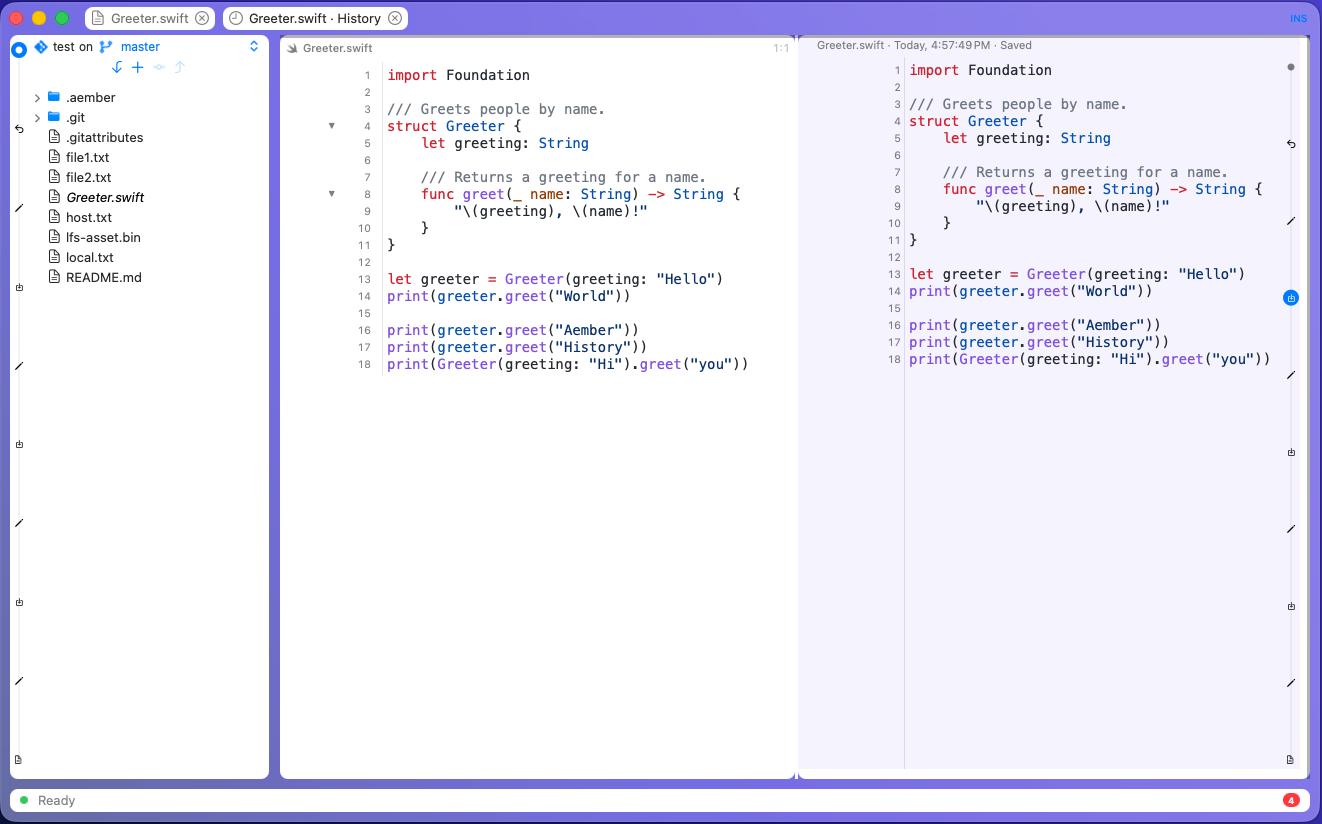
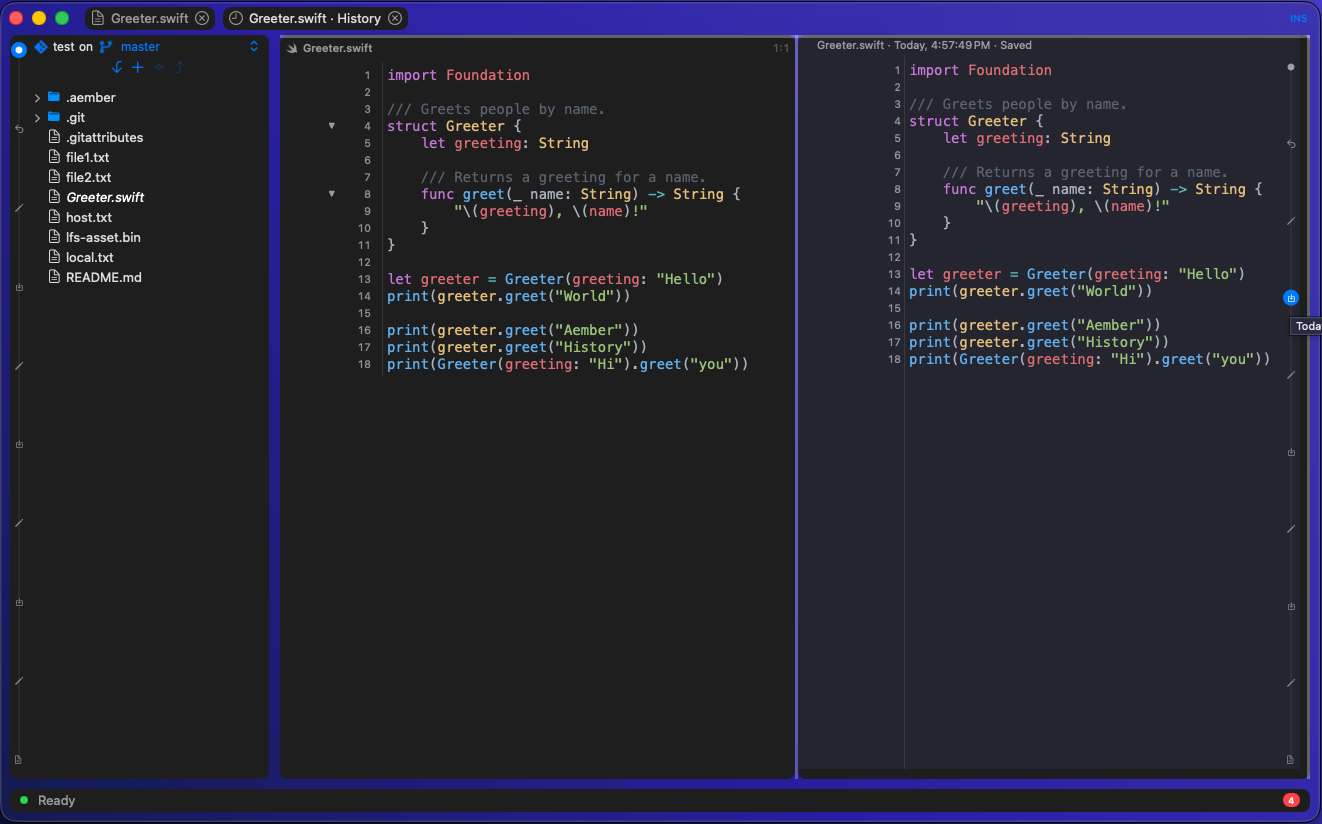
A History pane shows a file as it was at a moment, beside the live editor. The pane is read-only and tinted, so you cannot mistake it for the live editor.
To open a History pane, do one of these:
- Choose History > Show History (⌥⌘Y).
- Hold ⌥ while you drag a split handle into the editor and let go. The ghost line turns History’s color while ⌥ is held.
- Choose Show History in the context menu of a tab, of a file in the project tree, or of the editor.
If a pane already shows the file, Aember uses it. A new pane opens at the newest moment that differs from now.
The scrubber
A vertical scrubber runs along the pane, with now at the top. Each moment has one evenly spaced slot. Drag the knob or click a slot to show that moment. When the scrubber has focus, the arrow keys step one moment; ↑ moves toward now. Hover over a slot to see what happened then.
The icon of each slot says who made the change: a pencil for you, a figure in a hat and dark glasses for an agent, a gear for the language server or formatter, the git logo for git, and a drive for a change made outside Aember. Saves, loads, reloads, reverts, restores and deletions have their own icons. Named moments are stars.
The header and the seam
The header names the file, the moment, what happened and who made the change. The seam is a strip along the pane’s leading edge. It marks each block of lines that differs from the live file: blue for lines changed since, red for lines removed since, and a wedge where lines were added since.
Binary and very long files
A binary file’s History pane shows each moment as a hex dump: the offset, 16 bytes in hexadecimal, and the same bytes as ASCII on each row. The header gives the file’s size, and the seam marks the rows that differ from the live file. A large file shows only its first megabyte.
A text file too long to record edit by edit shows its text, but the seam marks no changes, because comparing such a file would be slow. The header says Too long to compare.
History keeps these files only up to the size set in Keep whole copies up to: in the History settings.
See the History of a Selection
You can see only the moments that changed some lines, such as one function.
- Select the lines in the editor.
- Choose History for Selection in the editor’s context menu.
The selection is widened to whole lines. A History pane opens, and its scrubber offers only the moments that touched those lines. The header says how many moments touched the selection. At each moment, the pane selects the lines as they were then. The list ends where the text was first written, or at the first moment History has for the file.
Aember follows the lines back through every edit, and also through loads, reloads, reverts and restores. If lines were added above the selection later, the pane still finds the right lines at earlier moments.
To see every moment of the file again, choose Show All Moments in the pane’s context menu.
You can restore the selected lines from the pane like any other change. See Restore an Earlier Version.
Browse the History Timeline
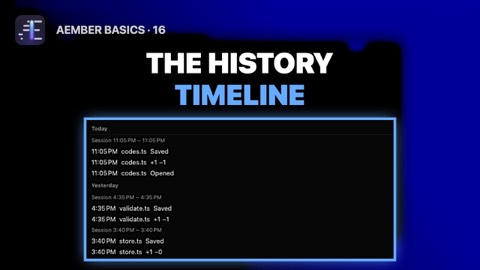
The History Timeline tab lists the project’s moments, newest first, grouped by day and by session. A session ends after a long pause. Choose History > History Timeline (⌘Y) to open it.
Each row shows the time, the file, what happened, the lines changed, and who made the change. A change that you didn’t make yourself starts with an icon for who made it, the same icon as on scrubbers: a figure in a hat and dark glasses for an agent. A named moment shows ★ and its name.
Markers are listed among the moments, at the time they were added, with a tag and their name in bold. See Mark a Point in History.
At the top of the tab:
- The search field (Search files and moment names) filters the rows by file name, by moment name and by marker name.
- The filter menu chooses All Files, This File (the file the tab was opened from), or Git.
To open a moment, double-click its row, or select it and press Space. A History pane opens on that file at that moment. This is also a way to reach files that no longer exist.
The Git filter lists the git operations that History recorded. When you open one, the window parks at the last moment before that operation. See Park the Window at a Moment.
A row’s context menu names, renames or unnames its moment, and offers to undo changes from it. The rows refresh when the tab is shown and when History changes. You can also open the tab from a History pane’s context menu, with Show History Timeline.
Restore an Earlier Version
 WatchAember Showcase 3: It Worked an Hour Ago
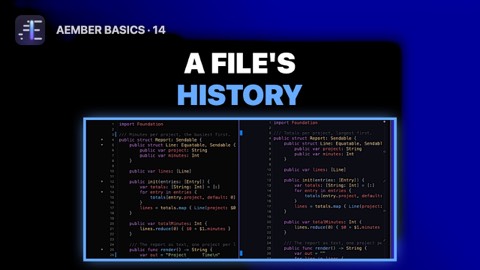 WatchAember Basics 14: A file's History
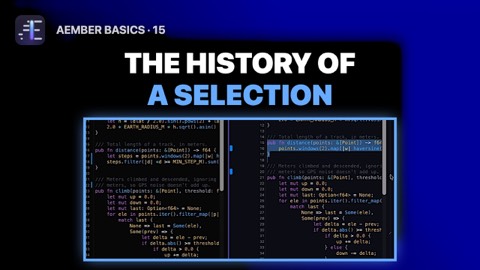 WatchAember Basics 15: The History of a selection
You restore from a History pane, or from a window parked at a moment. Every restore is an ordinary edit in the live editor. You can undo it with ⌘Z, and nothing is written to disk until you save.
Restore a whole file
- Open a History pane on the file. See Show a File’s History.
- Move the scrubber to the moment you want.
- Choose Restore File in the pane’s context menu.
Restore some changes
- Drag a block from the seam and let go over the live editor. A ghost of the block follows the drag.
- Choose Restore Change in a seam block’s context menu.
- Right-click a line in the pane, or select lines, and choose Restore Change. When the selection covers several changes, the menu item restores all of them.
- Select text in the pane and drag it into the live editor. The text is inserted as one undoable edit.
If the file is not open, Aember opens it beside the pane first. If the file was deleted, Aember creates it again, with History’s last contents as unsaved changes.
A binary file or a very long text file is restored only whole, with Restore File. If it is open, its editor gets the contents as unsaved changes. If it is closed, Aember writes it to disk, because History can’t keep its unsaved changes. Undo the restore with Undo This Change… on its moment.
Restore a deleted file
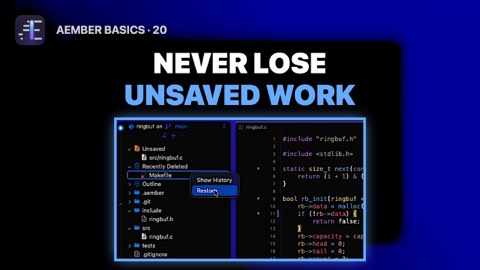
Deleted files appear in the Recently Deleted folder in the navigator. Choose Restore in a file’s context menu to create it again with its last contents, as unsaved changes. See Unsaved and Deleted Files.
Restore the whole project
To put every file back to how it was at a moment, choose Restore Project to This Moment… in that moment’s menu. See Restore the Project to a Moment. To restore only some files, park the window at the moment and restore each file you need. An agent connected to Aember can restore several files, or every changed file in the project, to one moment with its restore tool. See What Agents Can Do.
Park the Window at a Moment
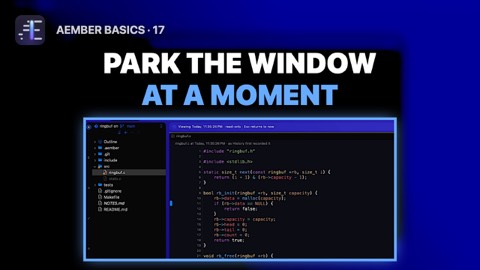
The project strip lets you see the whole project as it was at a moment. It is a vertical scrubber along the left edge of the navigator, with now at the top. It has one slot for each moment of the project, for all files together.
Drag or click the strip to park the window at a moment. The window stays there after you let go. While the window is parked:
- A banner above the editors names the moment and says that the window is read-only.
- Each editor shows its file at that moment, read-only and tinted. A file that did not exist then is shown empty, and its header says so.
- In the project tree, files deleted since come back in italics. Files and folders that did not exist yet are dimmed.
- The Unsaved and Recently Deleted folders show their contents at that moment.
- The Outline shows the symbols of the active file as they were.
- Global search (⌘⇧F) searches the project at that moment, and its results open at that moment. Replace is off.
Git’s folders stay as they are now and are dimmed.
Markers are shown on the strip as tags, each just above the moment it follows. Click a tag to park the window at its marker. When the window is parked at a marker, the banner shows the marker’s name. See Mark a Point in History.
Commits are shown on the strip as rings. Clicking a ring previews the commit instead of parking. To park at a commit, choose Park Here in the preview’s banner or the ring’s menu. See Preview a Commit.
To return to now, press Esc, click the button in the banner (Return to Now (Esc)), click the top mark of the strip, choose History > Return to Now, or choose Return to Now in an editor’s context menu.
While parked, you can still restore. Restore File and Restore Change in an editor’s context menu change the live file underneath. See Restore an Earlier Version. To put the whole project back to the moment, click the button with the counterclockwise arrow in the banner, or choose History > Restore Project to This Moment…. See Restore the Project to a Moment.
Name a Moment
Give a moment a name to find it again, for example “before the parser refactor”. Named moments are shown as stars on every scrubber, with ★ and the name in the timeline, and in quotes in Git History. They are never thinned away.
To name a moment:
- Right-click the moment on a scrubber, a timeline row, or a moment row in Git History. In a History pane that shows a past moment, you can also right-click the pane’s text.
- Choose Name This Moment….
- Type the name and click the button that confirms it.
For a moment that already has a name, the menu offers Rename Moment… and Remove Name. Removing a name cannot be undone.
From the keyboard, choose History > Name This Moment… (⌃⌘Y) or History > Remove Moment Name. They act on the moment of the focused History pane, project strip, timeline row or Git History moment row. If none of these has focus, they act on the moment the window is parked at.
Agents name moments too. Before an agent first changes a file through Aember, Aember names the file’s latest moment “Before”, followed by the agent’s name and the time. See Agents’ Changes in History.
A named moment belongs to one file. To name a point for every file at once, add a marker. See Mark a Point in History.
Mark a Point in History
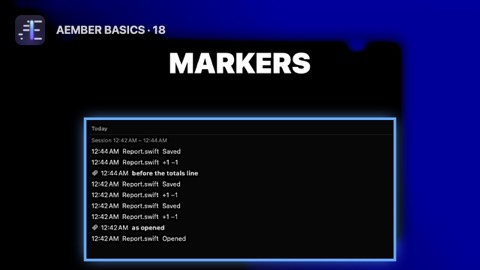
A marker names a point in the project’s History, for every file at once, for example “before the parser rewrite”. Later you can see the project as it was then, or put every file back to it.
To add a marker, choose History > Add Marker…, type a name, and click Add. The marker is added now: everything you typed before it is a moment before the marker. Each marker in a project has its own name. Case does not count, so “Parser” and “parser” are the same name.
If you forgot to add a marker before a change, you can add it at a past moment instead:
- Right-click a moment in the History Timeline tab, on the project strip, or in a file’s History pane, and choose Add Marker Here….
- Or park the window at the moment and choose History > Add Marker…. While the window is parked, the marker goes at the moment it shows.
The marker goes just after that moment. The moment, and every file’s moments up to then, are before the marker, and everything since is after it. A marker can’t be later than now.
Markers are shown in these places:
- In the History Timeline tab, among the moments, with a tag and the name in bold. See Browse the History Timeline.
- On the project strip, as tags. See Park the Window at a Moment.
- In the banner, while the window is parked at a marker.
To park the window at a marker, double-click its row in the timeline, select the row and press Space, or click its tag on the strip. The window shows the project as it was when the marker was added.
A marker row’s context menu has these items:
- Restore Project to This Marker… puts every file back to how it was when the marker was added. See Restore the Project to a Moment.
- Rename Marker… gives the marker a new name.
- Remove Marker removes the marker. It cannot be undone.
On the project strip, right-clicking a marker’s tag shows the same items.
While the window is parked at a marker, the restore button in the banner, and History > Restore Project to This Marker…, restore to the marker too.
Agents connected to Aember can add, list, rename and remove markers, yours too. An agent can add a marker at a past moment, so you can ask it to mark the point before its changes if you forgot. A marker an agent added shows the agent icon after the tag, and the agent’s name. An agent can pass a marker’s name to its History tools, for example to see what changed since the marker. See What Agents Can Do.
The moments a marker needs are never thinned away, so the project restores exactly as it was. Markers cover the project’s files, not files from outside the project.
Undo an Agent’s Changes
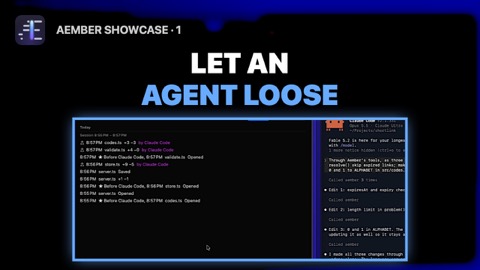 WatchAember Showcase 1: Let an Agent Loose, Then Take Back Only What You Don't Want
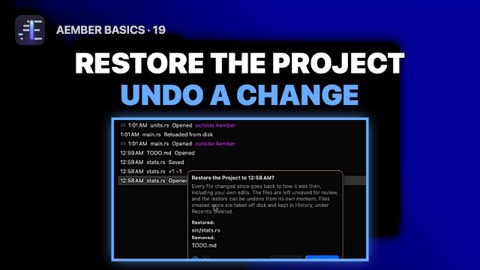 WatchAember Basics 19: Restore the project, undo a change
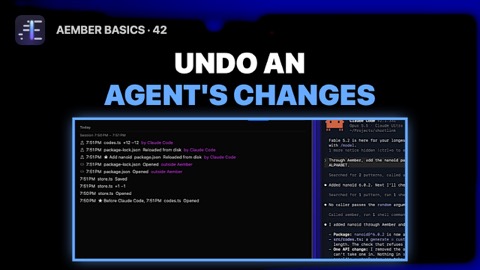 WatchAember Basics 42: Undo an Agent's Changes
You can take changes back out of every file they touched and keep everything else. Every menu that shows moments offers these items: the scrubbers of History panes, the project strip, the timeline tab, and moment rows in Git History.
- Undo an agent’s changes since this moment. The menu has one such item for each agent that changed files after the moment, with the agent’s name.
- Undo This Change… takes out one change. It is offered when the moment belongs to an operation.
Operations
An operation ties together everything one action changed, in every file. An agent’s edit call, a rename by the language server, a replace in the Find panel, and an earlier undo are each one operation. Undo This Change… takes out the whole operation.
The confirmation
Before anything changes, an alert lists every file the changes are taken out of, and every file or folder that goes back to its old place. Some files may have text that the change wrote and that was edited later. Those files are listed with a checkbox. A checked file is put back to how it was before the change, which loses the later edits. An unchecked file is left as it is.
Click Undo to go ahead. The files are left with unsaved changes, so you can review them. A file that the changes created and that is empty afterwards is moved to the Trash. The undo is itself an operation, so you can undo it the same way.
To put every file back to a moment, whoever changed it, see Restore the Project to a Moment.
Restore the Project to a Moment
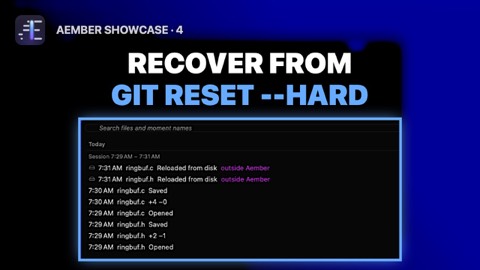 WatchAember Showcase 4: Recover from git reset --hard
WatchAember Basics 19: Restore the project, undo a change
Restore Project to This Moment… puts every file in the project back to how it was at a moment. It undoes every change made since, yours and every agent’s alike, unsaved changes included. The same menus that offer the undo items offer it, for a moment that has changes after it.
While the window is parked at a moment, the button with the counterclockwise arrow in the banner above the editors does the same for that moment. After the restore, the window returns to now. See Park the Window at a Moment.
Before anything changes, an alert lists the files that are restored, the files deleted since that come back, and the files created since. Click Restore to go ahead.
Files created since are removed from disk, even if they have unsaved changes. They do not go to the Trash: History keeps them, unsaved changes included, in the Recently Deleted folder, grouped under the restore that removed them. Files larger than Keep whole copies up to: in the History settings are not kept, so those are left in place, as are files that have grown past that size since the moment.
The restored files are left with unsaved changes, so you can review them. Binary files and very long text files are put back whole instead: into their editor if they are open, as unsaved changes, or written to disk if they are closed, because History can’t keep their unsaved changes. The same goes for Undo This Change… and for Restore in Recently Deleted. A restore does not erase anything from History. It is one more change, added after everything else, so the moments after the one you restored to are still there. Undo This Change… on the restore’s moment brings back everything it replaced and every file it removed.
To put back a single file or change instead, use Restore File or Restore Change in a History pane.
Commit and Stash from Moments
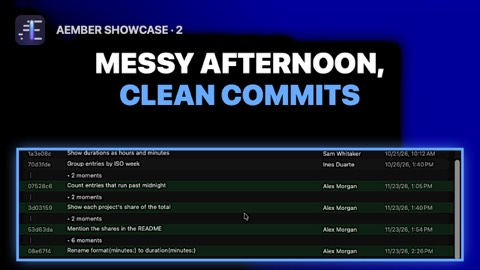 WatchAember Showcase 2: A Messy Afternoon into Clean Commits
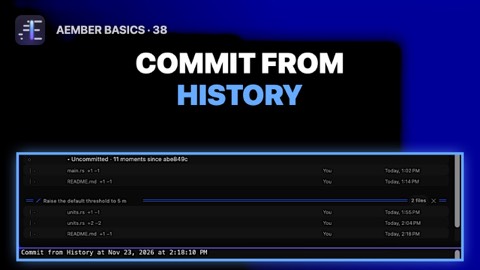 WatchAember Basics 38: Commit from History
Git History shows History’s moments among the commits. Choose Git > View History… to open it. The Uncommitted band lists the moments since the last commit, and the moments between two commits show how the work got from one to the next. Opening a file isn’t a change, nor is Aember reloading an open file after a git operation, so neither is listed unless you named that moment.
Make commits from moments
You can place commit boundaries between moment rows. Each boundary makes one commit of the files as they were at that point, with its own message. Nothing changes in git until you click the button that applies the commits. The working tree is not changed.
Git > Commit from History… (⌥⌘K) places a boundary after all the work since the last commit and lets you type its message.
Commits made this way can contain contents that were never saved to disk, and so were never built or tested. Aember says so before it makes them, and offers to save first. In the Git pane of Settings, Save modified files before committing from History makes Aember always save first.
Stash the work after a moment
Choose Stash Changes After This… on a moment row in the Uncommitted band. Your uncommitted work goes into a git stash, and the files return to how they were at that moment. Modified files are saved first. History keeps every version, so you can undo this from History.
You can keep working while git stashes. A file that you edit before the stash finishes keeps your edit and does not return to the moment. Aember then lists those files.
See Git for the rest of Git History.
Unsaved and Deleted Files
Because closing a tab does not ask you to save, a file can have unsaved changes and no open tab. Aember keeps such files visible.
The Unsaved folder
The Unsaved folder in the project tree lists every file with unsaved changes, open or closed. Its context menu has Save All, Revert All and, for one file, Save, Revert and Show History. The status bar also shows how many files are unsaved, closed files included.
File > Save All (⌥⌘S) saves closed files too, from the contents History holds. File > Revert to Saved discards the active file’s unsaved changes without asking. The discarded changes stay in History.
Git and builds read files from disk, so they do not see unsaved changes. Before a git operation that uses or overwrites a file with unsaved changes, Aember offers to save or warns you.
Files History does not keep
Some unsaved changes are not kept by History: files that match Files Not Recorded, projects with History turned off, very large files and binary files. For these files, closing the tab, quitting and switching projects ask you to save.
The Recently Deleted folder
The Recently Deleted folder lists files that Aember saw and that are now gone from disk, whoever deleted them. Double-click a file to open it in a History pane at its last contents. Choose Restore to create it again with those contents, as unsaved changes.
Files removed by a project restore are grouped under that restore, labeled with the moment it went back to. Choose Restore All on the group to bring them all back. See Restore the Project to a Moment.
Both folders are hidden when they are empty.
Keep and Thin History
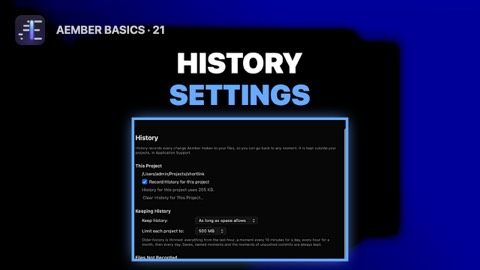
History thins older moments so that it does not grow without limit. It keeps everything from the last hour, one moment every 10 minutes for the last day, one moment every hour for the last month, and one moment every day before that.
Some moments are always kept:
- every save
- every named moment
- the moments each marker needs to restore the project as it was
- the last moment of each file
- the moments of commits that are not pushed yet
Thinning runs in the background, a minute after a project opens and then every six hours. It waits while you type or while the window is parked.
Settings
You set retention in the History pane of Settings. See History Settings.
- Keep history: sets the age to keep: as long as space allows (the default), one week, one month, 90 days or one year.
- Limit each project to: sets the size of each project’s store: 100 MB, 250 MB, 500 MB (the default), 1 GB, 2 GB, or no limit. When a store is over the limit, the age it keeps is cut down, to no less than a day. Named and protected moments stay, so a store can stay over the limit.
- Files Not Recorded lists patterns for files History does not record, such as
.env,*.pem,*.keyandid_*. Keep secrets here, because History is a second copy on disk. - Keep whole copies up to: sets the largest binary file, or text file too long to record edit by edit, that History keeps: 4 MB, 16 MB (the default), 64 MB, 256 MB, or Don’t keep copies. History keeps a whole copy of such a file each time it is opened, saved or changed on disk, and each time an agent writes to it. Larger files are not recorded.
- Record History for this project turns History on or off for the open project.
- Clear History for This Project… deletes every moment of the project. This cannot be undone.